Hashoff

How Hashoff works

The install, and every screen, in order. Screenshots are from a demo workspace of invented people — no customer's leave data appears here.

Installing it

  1. Press Add to Slack

    From hashoff.app, or from the Slack Marketplace listing. There is no account to create first and no password to choose.

  2. Approve the permissions

    Slack shows what Hashoff is asking for: sending messages, the /hashoff command, direct messages, and reading your member list with email addresses so people can be matched to existing employee records. Five scopes, each one used.

  3. You land back signed in

    Your workspace members are imported automatically, so the People page is already populated. Sign-in to the web app is Sign in with Slack, so there is still no password.

  4. Set policies and holidays

    Set your allowances on the Policies page, give each team a country, and import that country's public holidays. A Setup page lists whatever is still outstanding.

  5. Your team starts requesting

    From the Hashoff app in Slack, or from the web. The team's approvers get a message. Nobody else has to learn anything.

Add to Slack — installs in about a minute, with a 30-day trial.

Using it

#
HashoffApp9:14 AM

Sam requested leave 7 Sept → 11 Sept

Family holiday
ApproveDeny
Approvals happen in Slack. The approver gets a direct message and decides with one click; the message is rewritten in place afterwards, so the buttons cannot be pressed twice. (An illustration of the message, not a screenshot.)
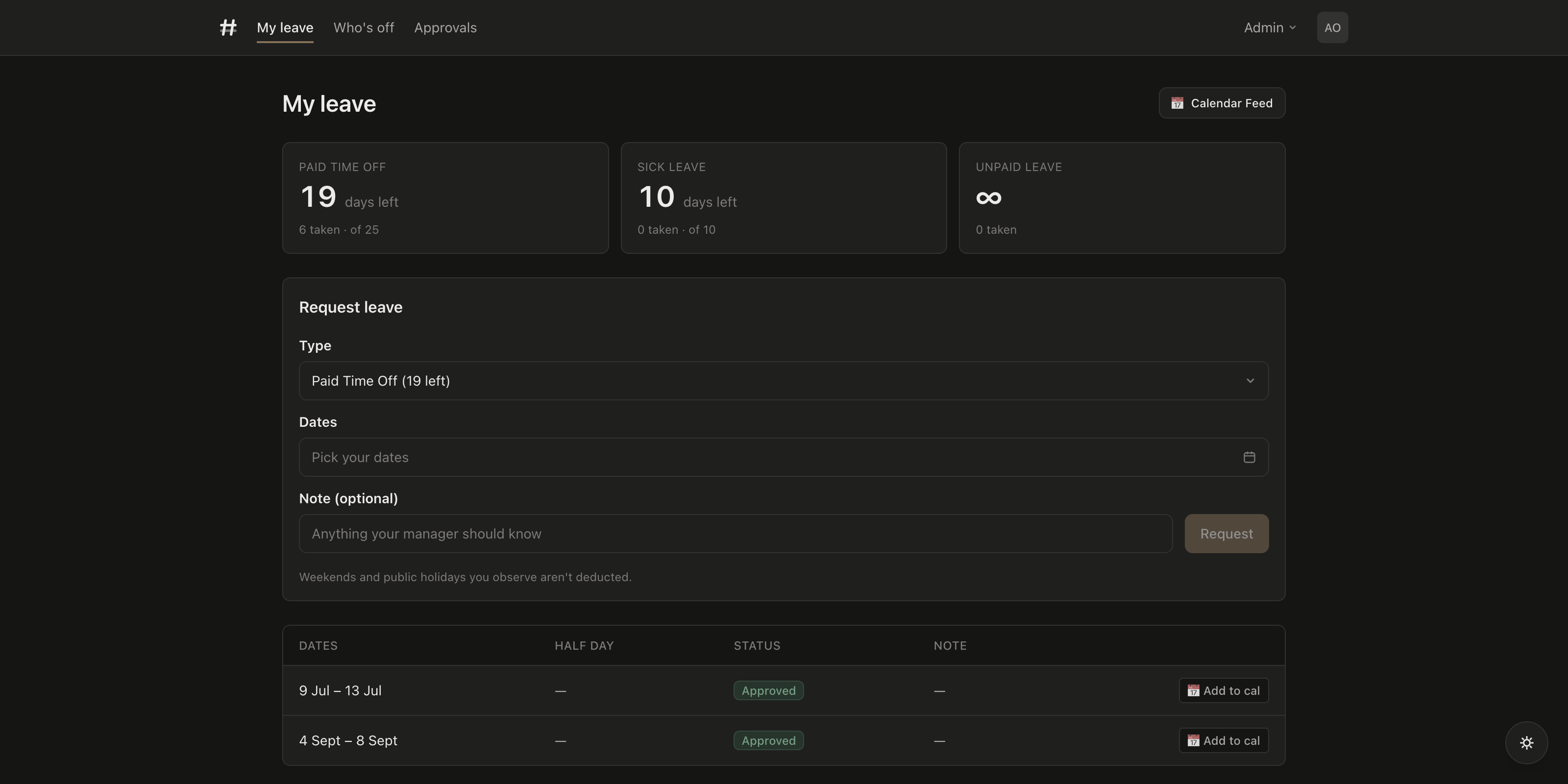
The My leave page showing 14 days left of 20 paid time off, 10 days sick leave, unlimited unpaid leave, and a form for requesting more
Everyone can see where they stand. Balances account for days taken and days still pending, and this form is the same engine the Slack dialog uses — so the rules cannot differ between them.
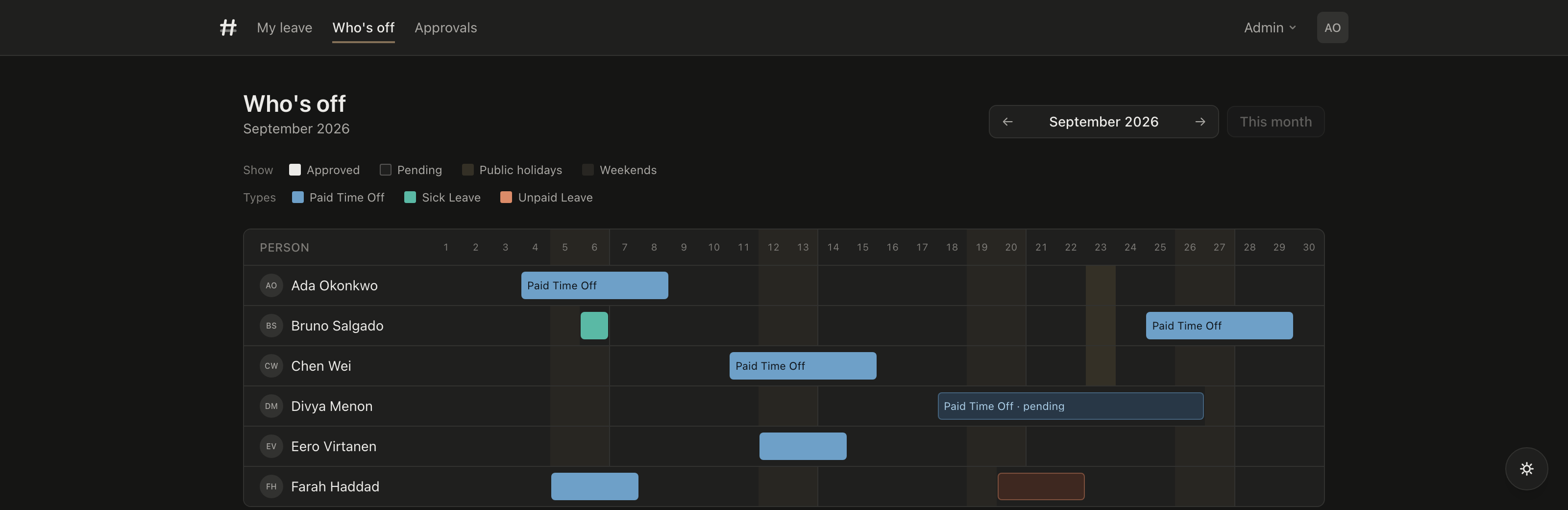
A monthly timeline showing six people, approved leave as solid blocks, pending leave outlined, weekends and public holidays shaded
One timeline for the team. Weekends and public holidays are shaded per team, so a team in Helsinki and a team in London are not charged for each other's days off. Pending requests are outlined rather than solid, so you can see what is not settled yet.
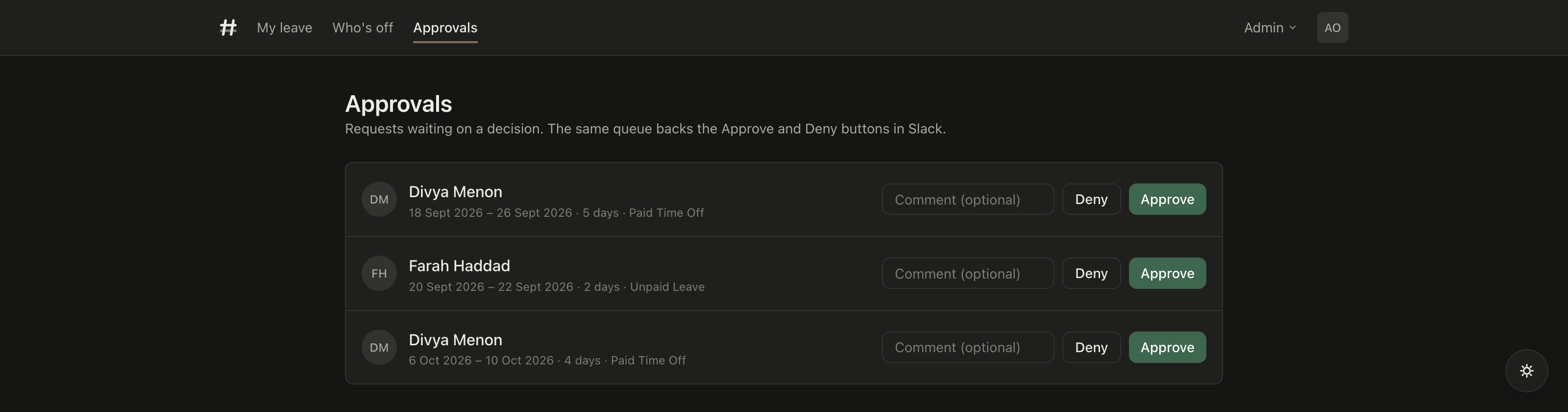
The approvals queue listing pending requests with dates, day counts and leave type, each with Approve and Deny buttons
The same queue backs the Slack buttons and this page, so a request approved in Slack disappears here too. Day counts already exclude weekends and the team's public holidays.
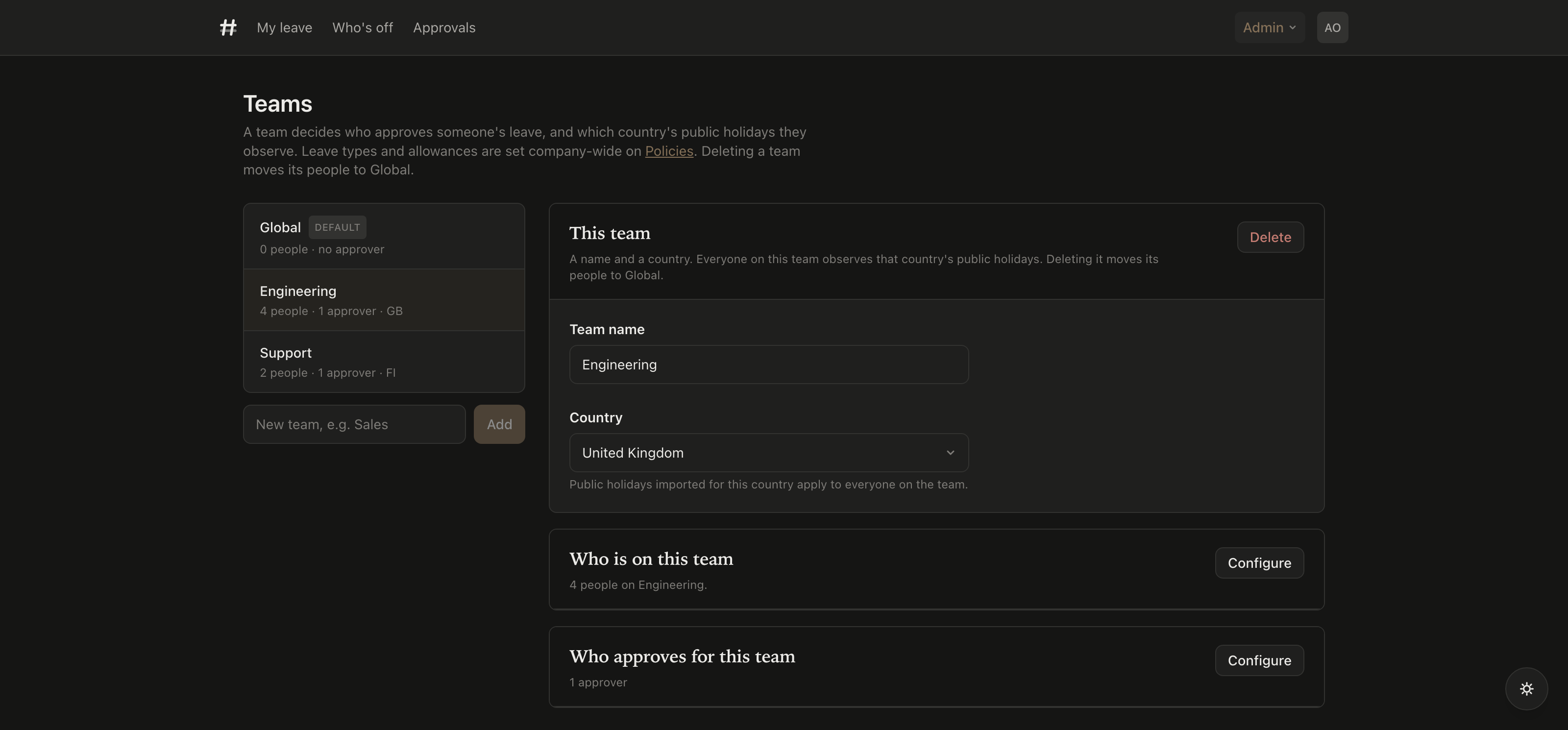
The Teams page with a list of teams on the left and, for the selected team, its name, country, members and approvers
A team decides two things: who approves its leave, and which country's public holidays its people observe. An approver needs no particular role and does not have to be on the team. Everyone belongs to a team — Global is the one nobody can delete.
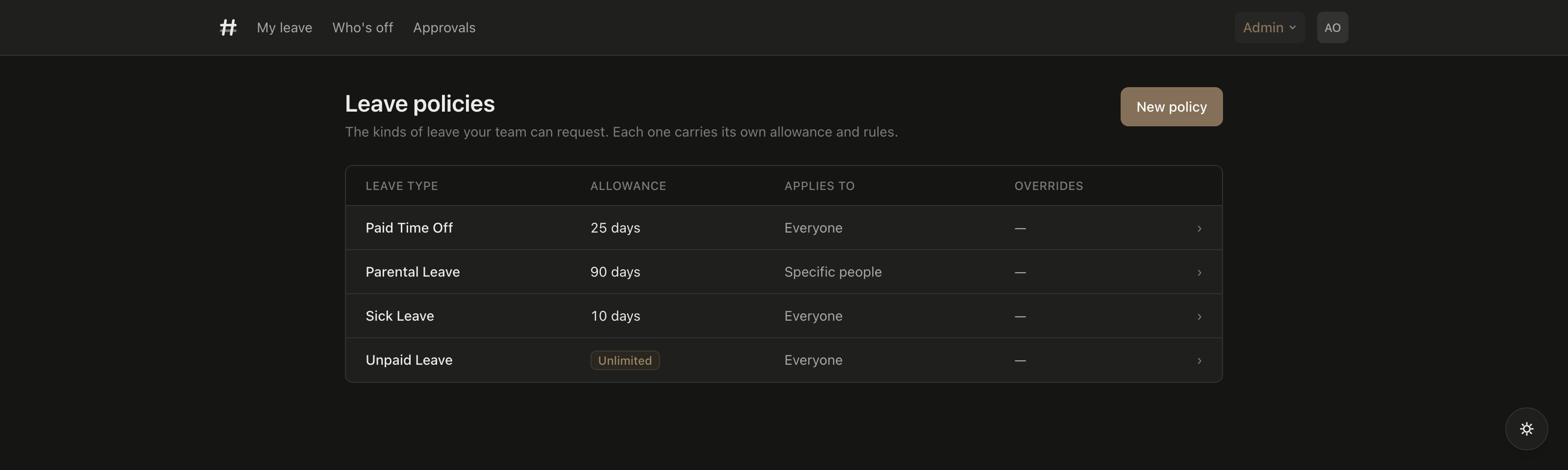
The leave policies page listing Paid Time Off, Sick Leave and Unpaid Leave with their allowances and who they apply to
Leave types are defined once for the company, so moving somebody between teams never changes their balance. Each row says what it gives and who gets it.
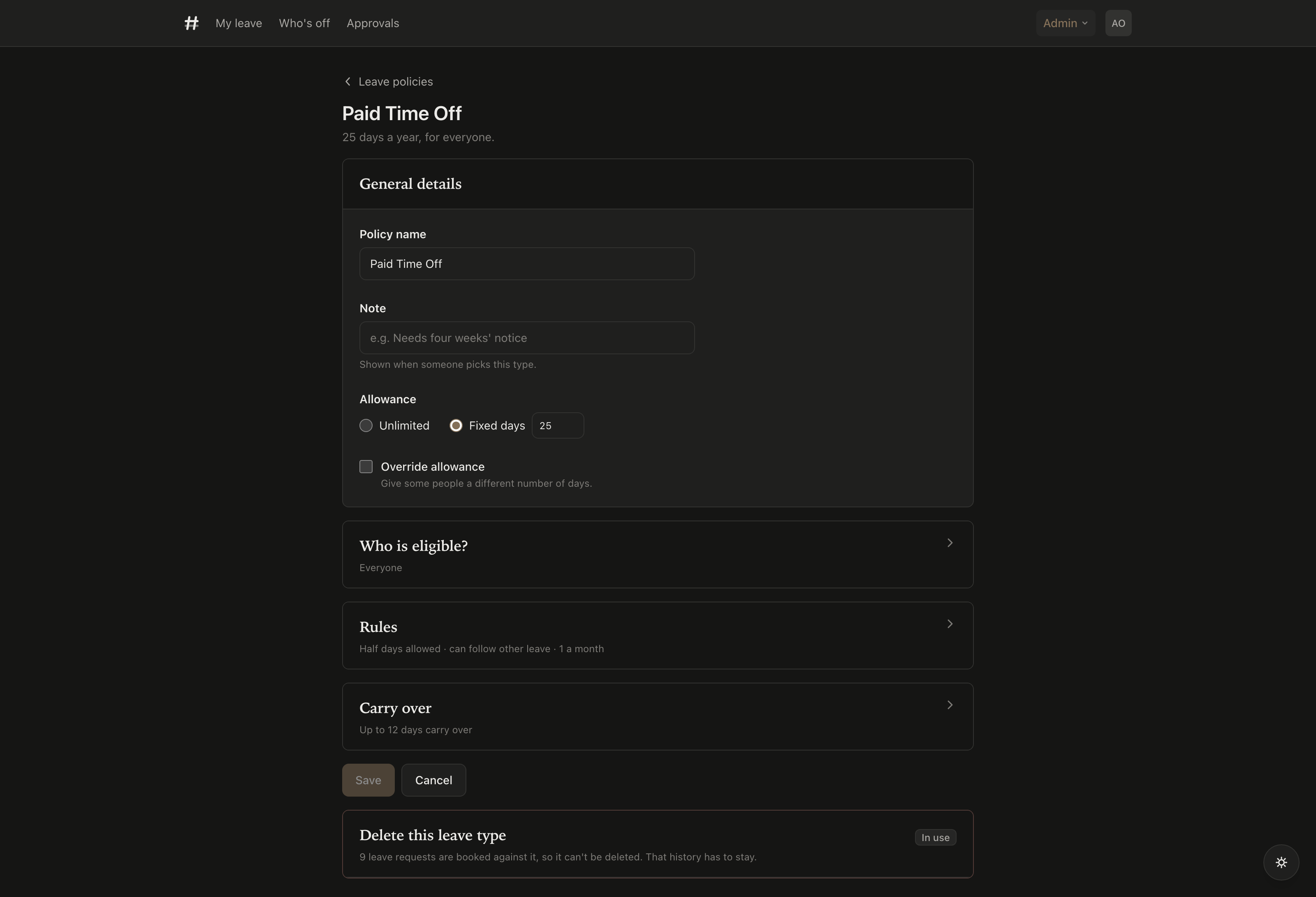
One leave type's page: its name, note and allowance, then collapsed sections for who is eligible, rules, and carry over
A leave type on its own page, written in one save. Who is eligible is everyone, or named teams, or named people. Rules cover half days, whether it can run into other leave, and how often it can be asked for. Carry over is its own switch.
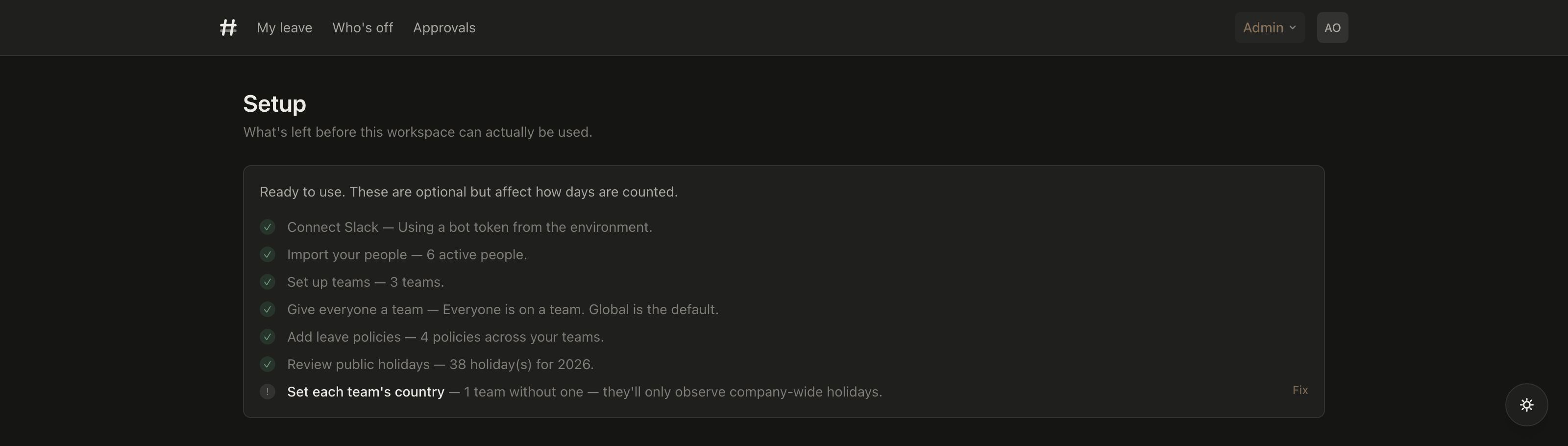
The Setup page listing seven steps, six complete with green ticks and one flagged as still to do
The checklist that tells you what is left. Most of it is done by installing: your people arrive from Slack, everyone lands on a team, and three leave types are created with sensible allowances.
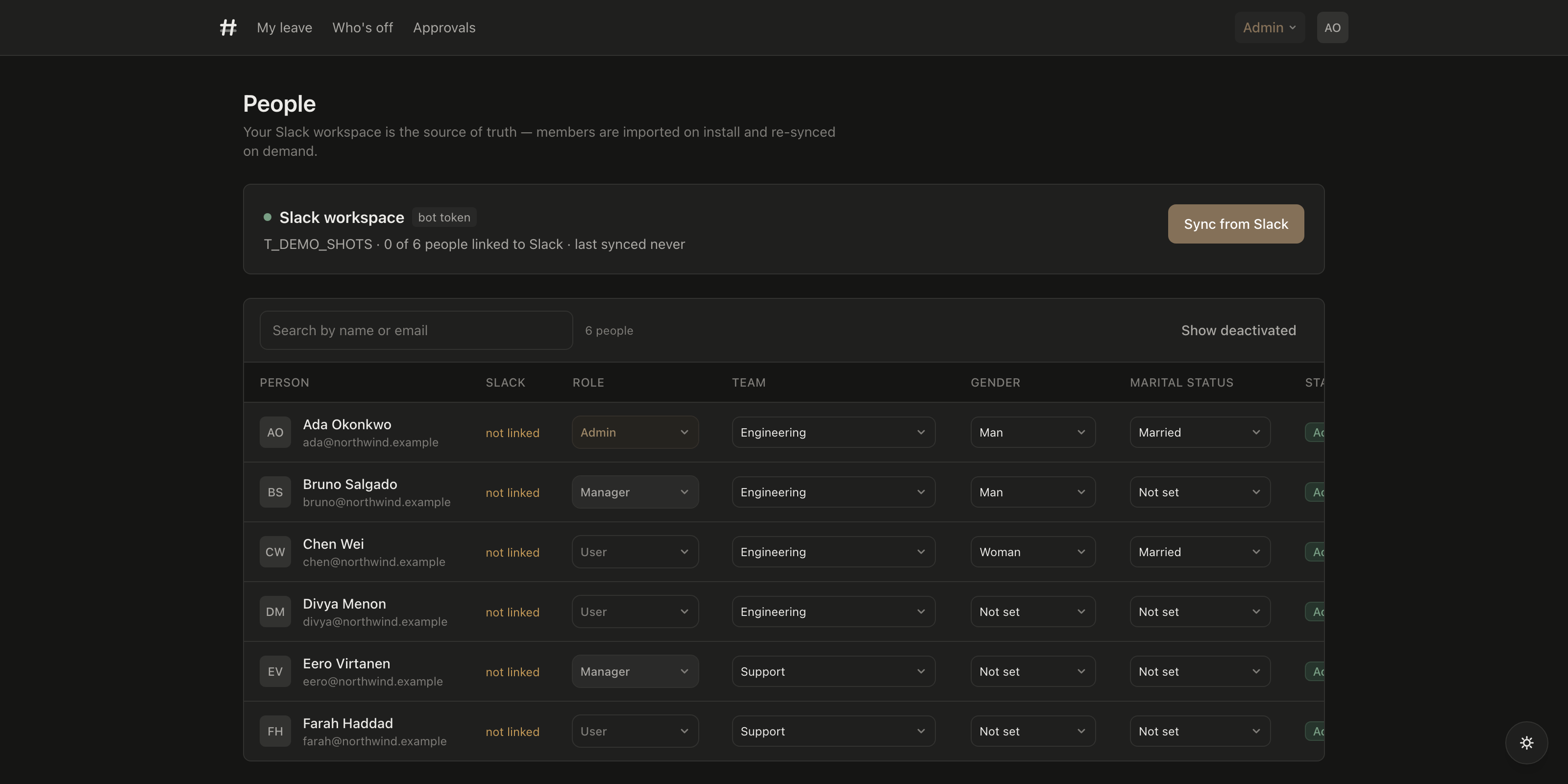
The People page listing six employees with their Slack link status, role, team and active status
Your workspace is the source of truth. People are imported on install and matched to their Slack accounts. Somebody who leaves is deactivated rather than deleted, so their history stays attached.

Removing it

Uninstalling Hashoff from your workspace deletes the stored Slack token immediately — the app handles Slack's uninstall and token-revocation events rather than waiting to be asked. Your leave records are kept, because an uninstall is often followed by a reinstall. Get in touch if you want them deleted too.